
Infographic report generation means turning research or business data into a designed, visual document: charts, short text, clear hierarchy and sources, all in one shareable file. The reliable way to do it is to start from the audience and the decision, gather verified data, pick the simplest visual form that carries the message, and test it on someone who has not seen the numbers. AI can now do much of the assembly. It cannot do the checking for you.
This guide walks through the whole process, from deciding whether you need an infographic at all to reviewing an AI-generated draft before it goes to a client.
TL;DR
- An infographic report works best when busy readers need the key findings fast. A plain chart with a short explanation is sometimes the better choice.
- Build it in order: audience and purpose, data, visual form, then sharing and feedback. Repeat until it does the job.
- Use authoritative data, check how it was collected, and list your sources on the page itself.
- AI speeds up drafting and chart creation, but you still review the numbers, the alt text and the story the visuals tell.
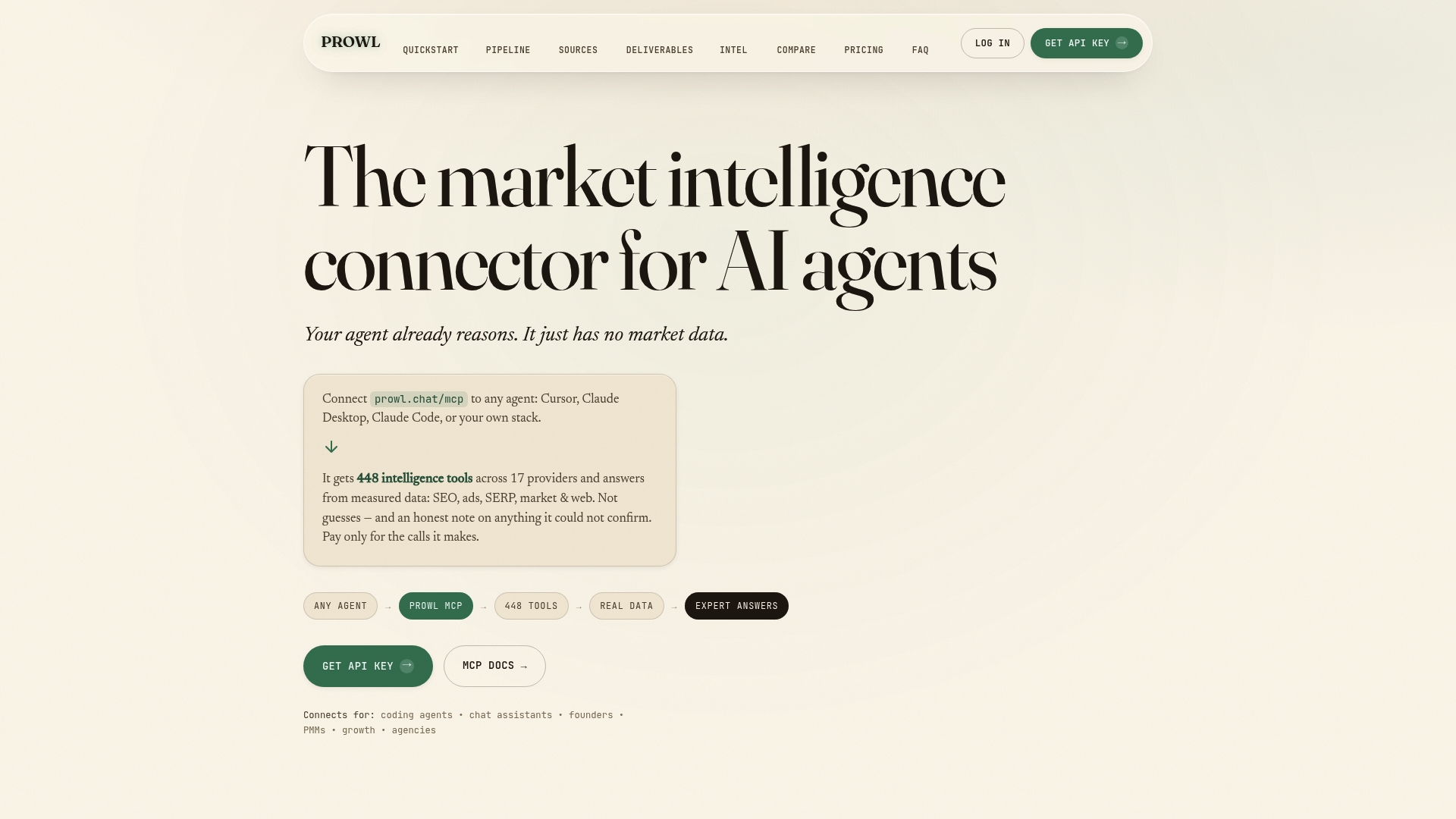
- Prowl lets an AI agent pull live data from 444 marketing intelligence tools through one connection and output the result as an infographic, PDF, PPTX and other formats.
Table of Contents
- What an infographic report is
- When an infographic report is the right format
- What to include in an infographic report
- A step-by-step workflow
- Choosing and verifying your data
- How AI helps generate an infographic report
- Our perspective: the data is the hard part
- Generate your infographic report with Prowl
- Citing sources and using material legally
- Formatting, sharing and testing
- FAQ
- Sources
What an infographic report is
An infographic uses charts, timelines, maps or other visualizations to explain data. The UK government’s analysis function notes that this can help explain difficult messages and make stories more memorable. An infographic report stretches that idea across a full document: several visuals, a clear running order, and just enough text to explain each one.
Think of it as the middle ground between a one-page graphic and a thirty-page written report. A traditional report assumes the reader will sit down and read. An infographic report assumes they will skim, so every page has to earn attention in seconds.
The US Department of Labor’s evaluation toolkit makes the same point from the research side: infographics and one-pagers let researchers share findings with audiences who may not have time to read full reports. In marketing, that audience is usually a client, an executive or a stakeholder who wants the answer before the methodology.
When an infographic report is the right format
Format should follow the reader’s need. An infographic report is a good fit when:
- The audience is senior or time-poor and needs the headline findings in a minute or two.
- You are comparing a handful of metrics, such as share of voice, traffic trends, ad spend or review sentiment.
- The report will circulate beyond the people who commissioned it, for example in a deck, an email or on social channels.
- You want the numbers to be remembered, not just filed.
It is a poor fit when the reader needs to look up exact values, when the dataset is large, or when the story depends on nuance. The same government guidance cautions that a simple chart with explanatory text may be clearer and more accessible, and asks you to consider whether an infographic suits the amount of information. For big tables, an accessible spreadsheet attached to the report is often the better companion.
A useful test: can you state the one thing the reader should do or believe after seeing it? If you can write that sentence, you can probably design the report. If you cannot, more design will not help.
What to include in an infographic report
The Department of Labor toolkit gives a clean skeleton for an infographic or one-pager: a brief descriptive title, a one-to-three-sentence introduction, a body of visuals with limited narrative, and sources at the bottom. A multi-page report repeats that pattern per section.
| Element | What it does | Practical rule |
|---|---|---|
| Title | Tells the reader what the page is about | Descriptive, not clever |
| Introduction | Frames the question and the answer | One to three sentences |
| Key figures | Gives the headline numbers | Three to five, large and labeled |
| Charts | Show comparison, trend or share | One message per chart |
| Short narrative | Explains what the visual means | A sentence or two next to each chart |
| Sources | Lets the reader verify | At the bottom of every page that uses data |
On visual style, Indiana University’s library guide recommends choosing two or three primary colors and ordering information logically so it builds to a clear conclusion. For agency work, those colors should be the client’s brand palette, so the report looks like it belongs to them.
For marketing reports specifically, keep the number of KPIs small. Our guide to interactive marketing reports for agencies argues for three to five KPIs connected to real data, and the same discipline applies to static infographics.
A step-by-step workflow

The University of Toronto’s Map and Data Library describes a workflow that holds up well for any data visual: identify the audience and purpose, prepare and explore the data, choose a visualization form and its elements, then share it and receive feedback, iterating until it meets the need. Here is how that looks in practice for an infographic report.
1. Define the audience and the decision
Write down who will read it and what they will decide. A founder weighing a new market needs a different report from an SEO lead reviewing a quarter. This choice sets the length, the tone and which metrics make the cut. Mapping client decisions before you build is the core idea in our piece on streamlining agency reporting.
2. Prepare and explore the data
Pull the raw numbers, clean them and look at them before designing anything. Check for gaps, odd spikes and mismatched date ranges. Exploring first often changes the story: the metric you assumed was the headline turns out to be flat, and a smaller one is the real finding.
3. Choose the visual form
Match the chart to the question. Trends over time suit lines. Share of a total suits a bar or a simple proportion graphic. Ranking suits horizontal bars. Geography suits a map. If a chart needs a paragraph to decode it, pick a simpler one. Our overview of marketing data visualization covers how to turn numbers into decisions without decorating them.
4. Draft the narrative around the visuals
Write the headline for each section as the finding, not the topic. “Organic traffic grew while paid declined” tells the reader more than “Traffic overview.” Keep the supporting text to a couple of sentences.
5. Share, collect feedback and revise
Send a draft to someone who fits the audience and ask what they took away. Revise, then repeat. A Looker Studio dashboard that brings scattered data into one live view shows the same loop applied to ongoing reporting: define the audience, connect the data, choose the views, then refine with feedback.
Choosing and verifying your data
An infographic looks authoritative whether or not the numbers are. That makes verification the most important step, and the one most often skipped.
Indiana University’s guide advises using reliable, authoritative data and checking how it was collected, its limitations and whether it may be biased. It also recommends researching the topic, gathering data, confirming that statistics are supported and verified, and looking for a unique angle.
In practice, run each number through four questions:
- Where did it come from? A named, dated source, not a screenshot or a repost.
- How was it measured? Sample size, time period, geography and definition all change what a figure means.
- Does it agree with a second source? When two providers disagree on traffic or keyword volume, say so rather than quietly picking one.
- Is it current? Marketing data goes stale quickly. Stamp the date range on the chart.
This is where cross-referencing pays off. A report that combines several providers can flag where they diverge, which is more honest and more useful than a single clean-looking number.
How AI helps generate an infographic report
AI changes the labor of this process more than the logic. Research tools show what is now possible: LIDA, an open-source library, uses large language models to generate grammar-agnostic visualization specifications and data-faithful infographics. In plain terms, you give a model a dataset, it proposes goals and chart specifications, and code renders them.
For agencies and analysts, the practical gains are:
- Faster first drafts. The agent assembles charts, headlines and summary text in one pass instead of hours of manual layout.
- Consistency. The same structure and styling apply across clients and months.
- Easier iteration. Changing the audience or the KPI set means re-running a request, not rebuilding a design file.
What AI does not remove is the need for review. Check every number against its source. Check that the chart type fits the claim. And check accessibility: North Carolina’s public schools guidance on digital accessibility says to review automatically generated alternative text before publishing, and not to assume an AI-generated description reflects the image’s purpose. A machine can describe a bar chart literally and still miss the point you made with it.
Our perspective: the data is the hard part
Most infographic tools start from a blank canvas or a template and ask you to paste your numbers in. That solves layout. It does not solve the harder problem, which is getting accurate, current, cross-checked numbers into the report in the first place.
That is why we built Prowl around a single connection. An agent or workflow connects once and can reach 444 marketing intelligence tools covering competitive analysis, SEO and ad performance, funnels, reviews, pricing and market trends. Instead of wiring up separate integrations and reconciling their outputs by hand, the agent gathers data from several providers in one workflow and cross-references it.
We hold to three principles when reports are generated this way:
- Every number should trace back to its source. If a reader cannot see where a figure came from, the infographic is decoration.
- Coverage gaps should be stated, not hidden. A report that says what it could not verify is more trustworthy than one that fills the space.
- Format is the last step. The same verified analysis should come out as an interactive report, PDF, infographic, PPTX, video or audio, depending on who is reading it.
The bottleneck in reporting is rarely design. It is the hours spent collecting and reconciling data before design starts. Remove that, and the infographic becomes the easy part.
— Prowl Team
Generate your infographic report with Prowl
If you run reporting for clients or need quick market synthesis for your own team, Prowl connects your AI agent or workflow to live marketing data and produces the finished deliverable, including infographic-style reports, from one request. You can see the output formats on the Prowl homepage and browse real examples in the use cases.
Plans start with Recon, which has no published price, then Exploit at $60 per month, Blackops at $120 per month and Syndicate at $240 per month. If you prefer pay-as-you-go, you can top up credits in $10, $50 or $200 amounts. Current details are on the Prowl pricing page.
Citing sources and using material legally
Every infographic that uses outside data owes the reader a source line, and sometimes owes the data owner more than that.
The University of Toronto’s workflow guidance says that if you use data other than your own, you should double-check its terms of use and include citations for the data sources. Some datasets allow reuse with attribution; others restrict commercial use or redistribution. Read the terms before the report goes to a client.
If you reproduce someone else’s image or infographic, the Alverno College APA 7 guide says to assign a figure number, use an italicized title and add an attribution note underneath. Even if you never publish in academic style, that format is a good default: it is clear, consistent and easy to audit.
A practical sourcing habit for client reports:
- Put a short source line under each chart, with the provider and the date range.
- Keep a full source list on the final page.
- Note any figure that is an estimate rather than a measurement.
- Keep the underlying data file so you can answer follow-up questions.
Formatting, sharing and testing
Decide how the report will travel before you finish designing it. A PDF suits email and client archives. A slide format suits meetings; our walkthrough on exporting reports to PowerPoint without rebuilding slides covers that route. Some audiences respond better to a short narrated walkthrough, and video report templates show structures that get watched.
Make it accessible
The UK government guidance suggests that for longer infographics you provide an SVG image and a plain-text alternative explaining the information, and that an accessible spreadsheet may be better for large amounts of data. Write alt text that states the finding, not just the chart type.
Test before you send
The UC Davis data visualization lab recommends you pilot-test a visualization with people unfamiliar with the data to see whether the key message is communicated clearly. Ask them to explain the main takeaway in their own words. If it differs from yours, the design needs another pass, not the reader.
Make it repeatable
A one-off infographic is a project; a monthly one is a system. Standard templates, fixed KPIs and automated distribution keep the quality up and the effort down. Our guides to agency reporting templates, a repeatable monthly workflow and report distribution automation cover how to set that up.
FAQ
What is the difference between an infographic and an infographic report?
An infographic is usually a single visual that explains one topic. An infographic report spreads that approach across multiple sections or pages, with a consistent layout, short narrative and a source list. It suits recurring or multi-metric reporting where a single graphic would be too crowded.
Can AI generate an infographic report on its own?
AI can draft charts, headlines and layouts quickly, and research systems like LIDA show models can produce data-faithful visualizations. You still need to verify the figures, check the chart choices and review any generated alt text before publishing. Treat the AI output as a strong first draft.
How many metrics should one infographic report include?
Fewer than most people expect. For marketing reports, three to five KPIs tied to a clear decision keep the page readable. If you need more detail, attach a spreadsheet or appendix rather than crowding the visuals.
How do I make an infographic report accessible?
Write alt text that explains what the visual shows, review any automatically generated descriptions, and offer a plain-text version of the information. For long or data-heavy pieces, add an SVG version and an accessible spreadsheet so readers using assistive technology can reach the numbers.
Do I have to cite sources in an infographic?
Yes. Readers need to see where the numbers came from, and some data comes with terms of use that require attribution. Put a short source line under each chart and a full list at the end.
Sources
- Data visualisation: infographics, Government Analysis Function
- E2A Tool Kit: Infographics and One-pagers, US Department of Labor
- Creating Infographics, Indiana University Libraries
- Workflow, University of Toronto Map and Data Library
- LIDA on PyPI
- Creating Accessible Digital Content, NC DPI
- Images, Infographics, Maps, Charts and Tables, APA 7, Alverno College
- Creating Effective Data Visualizations, UC Davis DataViz Idea Lab
- Looker Studio dashboard guide